Glanceboard

A daily calendar your kids actually look at.

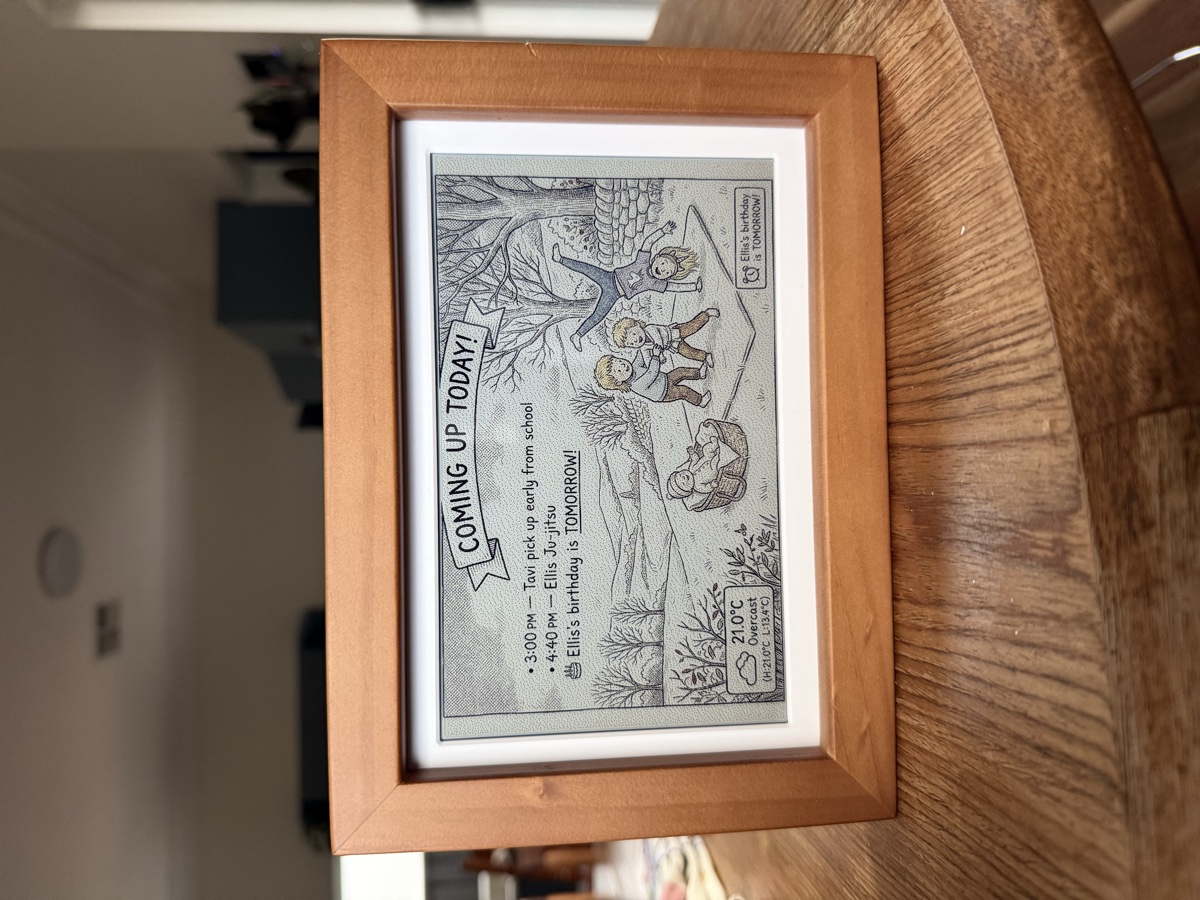
Glanceboard turns your Google Calendar into generated art on an e-ink display. No screens. No notifications. Just a quiet picture frame that helps your family know what's happening today.

A Glanceboard e-ink display in a wooden frame, showing a hand-drawn illustration of kids playing with their day's schedule

Why I built this

I wanted to empower my kids to be more independent in the mornings — to know what's on today, what to pack in their bags, what to wear without asking and without giving them a screen to check.

I couldn't find anything that did this well, so I built Glanceboard. It reads our family calendar and generates a new illustrated scene every morning with the day's events, weather, and our characters on it.

My kids love it. They get excited every morning to see what the picture looks like and read what's coming up. It's become part of our routine.

It uses AI image generation, so sometimes the pictures do weird things — misspelled words, characters that don't quite look right. The kids think that's funny. So do I.

How it works

You get a Waveshare ESP32-S3 PhotoPainter — a beautiful wooden-framed e-ink display with built-in WiFi (~$90 on Amazon). Glanceboard connects to your Google Calendar, checks the weather, and generates a new illustrated scene throughout the day. The display updates itself over WiFi — no interaction needed.

You can add characters (your kids, pets, anyone) with reference photos so they appear in each day's illustration. There are different art styles to choose from, and you can customise the prompt template if you want to get creative.

Get started

Glanceboard is open source. You can run the whole thing yourself for free. If you'd rather not deal with the server side, there are hosted options too — people asked, so I set them up.

Free

$0

Self-hosted. You run your own server and bring your own API keys. It's open source — do what you want!

  • Full source code on GitHub
  • Complete control over everything
  • Requires some technical setup
View on GitHub

Glanceboard Plus

$9 / month

Fully managed. I handle everything including AI image generation. Zero config.

  • No API key needed
  • Nothing technical to set up
  • Just plug in your display
Sign up

What you need

Just one piece of hardware — the display itself:

  • Waveshare ESP32-S3 PhotoPainter — 7.3" colour e-ink display in a wooden frame with built-in WiFi (~$90)
  • MicroSD card — 16GB or larger (one is included with the PhotoPainter)
  • USB-C cable — for power (or use the optional battery)

No Raspberry Pi needed. There's a step-by-step setup guide in the dashboard once you sign up.

Built by @botti — an open source project.

Welcome to Glanceboard

Let's get your e-ink display set up in a few steps.

1. AI Image Generation

Glanceboard uses AI to generate your calendar art. You'll need an API key — images cost ~$0.01–0.08 each.

2. Google Calendar

Connect your Google Calendar so Glanceboard can read your events and turn them into art.

💡 Tip: If you only want your kids' activities on the display, create a new shared Google Calendar (e.g. "Kids Calendar") and add events there. You can then select that specific calendar below.

We'll only read your events — nothing is modified.

Don't want to connect Google? Use an iCal URL instead

In Google Calendar: Settings → your calendar → "Secret address in iCal format"

3. Weather

Enter your city or suburb so we can show the weather on your display and dress the characters appropriately.

4. You're all set! 🎉

Your Glanceboard is configured. Images generate automatically at 1 AM and 2 PM daily.

🔑 API key configured
📅 Calendar connected
🌤️ Weather configured

📺 Connecting Your PhotoPainter Display

Once you generate your first image, you'll get a Display Image URL in Settings. To show it on your e-ink screen:

  1. Insert the SD card into your Waveshare ESP32-S3 PhotoPainter
  2. Power on the PhotoPainter via USB-C
  3. Connect to the PhotoPainter's WiFi hotspot (esp_network, password: 1234567890)
  4. Open http://192.168.4.1/index.html in your browser
  5. Switch to STA mode, enter your home WiFi credentials
  6. Your display will auto-update with new images ✨

Latest Display

No image generated yet

Status

Last Generated
Mode
Events
Weather
Characters
Calendar
Model
Est. Monthly Cost

🧑 People

Add the people who appear in your daily illustrations. Upload photos for AI consistency.

🐾 Extra Characters

Add pets, mascots, or other characters that appear alongside your people.

Customize the image generation prompt. Available placeholders: {{DAY_NAME}}, {{BANNER_TEXT}}, {{SEASON}}, {{EVENT_LIST}}, {{CHARACTERS}}, {{WEATHER}}, {{BIRTHDAY}}, {{MODE}}

Displays

Each display is a separate e-ink screen with its own art style and settings. Paid plans include 1 display; additional displays are $10/month each.

💎 Subscription

Current Plan Free

📅 Calendar

Or use a manual iCal URL below.

Used if Google Calendar is not connected.

🌤️ Weather

⚙️ General

Changes the overall look and feel of your generated images.

Choose what times your Glanceboard generates a new image each day.

📺 E-Ink Display Setup

Auto-generated from your account. Your PhotoPainter fetches this URL to update the display.

To connect your ESP32-S3 PhotoPainter display:

  1. Power on the PhotoPainter via USB-C
  2. Connect to WiFi hotspot esp_network (password: 1234567890)
  3. Open http://192.168.4.1/index.html → switch to STA mode → enter your WiFi
  4. The display will poll for new images automatically ✨

Using a Raspberry Pi instead? See the legacy Pi setup guide.

All plans include the full Glanceboard experience. The difference is who hosts the infrastructure and handles AI image generation.

🛠️

Self-Hosted

Free

Run everything yourself

  • ✅ Full source code on GitHub
  • ✅ Your own server & API keys
  • ✅ Complete control
  • ✅ No monthly fees
  • ⚙️ Requires technical setup
View on GitHub →
☁️

Hosted

$3/month

We host, you bring your API key

  • ✅ No server setup needed
  • ✅ Automatic updates
  • ✅ Cloud-hosted dashboard
  • ✅ Scheduled image generation
  • 🔑 Bring your own AI API key
🎯

Plus

$9/month

Fully managed — zero config

  • ✅ Everything in Hosted
  • ✅ No API key needed
  • ✅ AI generation included
  • ✅ Priority support
  • ✅ Zero technical knowledge
  • 🎉 Just plug in your display!
1

🛒 Get the PhotoPainter

You just need one thing — the display itself:

🖼️
Waveshare ESP32-S3 PhotoPainter

7.3" colour e-ink display in a beautiful wooden frame with built-in WiFi, speaker, and sensors. ~$90 from Waveshare or Amazon.

🔌
USB-C Cable

For power — or use the optional lithium battery for cable-free operation.

💡 No Raspberry Pi needed! The PhotoPainter has everything built in — WiFi, processor, and display in one unit.
2

📶 Connect to WiFi

The PhotoPainter creates its own WiFi hotspot for initial setup:

  1. Insert the SD card (included) into the PhotoPainter
  2. Plug in the USB-C cable to power it on
  3. On your phone or computer, connect to the WiFi network:
    • SSID: esp_network
    • Password: 1234567890
  4. Open your browser and go to:
    http://192.168.4.1/index.html
  5. Click "STA" to switch to Station mode
  6. Enter your home WiFi name and password, then click Send
  7. The PhotoPainter will restart and connect to your home network
💡 After setup, the PhotoPainter is accessible at http://esp32-s3-photopainter.local/index.html on your home network.
3

🎨 Generate Your First Image

  1. Come back to this dashboard
  2. Go to the Dashboard page
  3. Click "🎨 Generate Now"
  4. Your first calendar art image will be created!
4

📺 Send Image to Display

Once your image is generated, send it to the PhotoPainter:

  1. Go to SettingsE-Ink Display Setup
  2. Click "📋 Copy URL" to copy your Display Image URL
  3. Open the PhotoPainter's web interface at http://esp32-s3-photopainter.local/index.html
  4. Upload your generated image or configure the URL for automatic updates
💡 Automatic updates: The cloud generates new images when your calendar or weather changes. The display will update automatically.

🎉 You're Done!

Your Glanceboard will now:

  • ✅ Generate a new calendar art image when your events or weather change
  • ✅ Update the e-ink display automatically
  • ✅ Show your events, weather, characters, and upcoming birthdays

You can also manually regenerate up to 3 times per day from the Dashboard.

💡 Using a Raspberry Pi instead? The legacy Pi setup is still supported — see the Pi setup guide on GitHub.